September 29, 2026
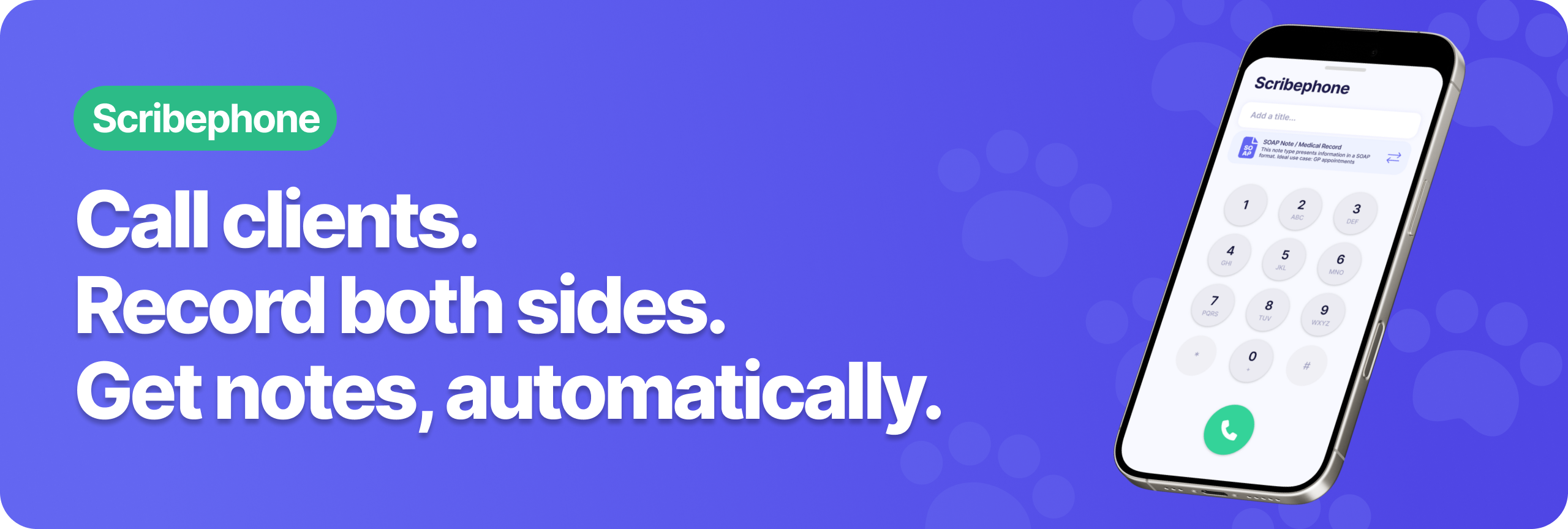
Scribephone lets you call clients from inside Scribenote. Both sides of the conversation get recorded, and automatically turned into a note. This post covers everything you need to know to get started.
Scribephone is a Scribenote Pro feature, and available to try during the free trial.
Verifying a number allows you to use your clinic’s caller ID when you make calls with Scribephone. If your caller ID isn't set up, your client sees your incoming call as a default Scribenote number instead.
You can share a verified number with your team so nobody else has to set it up again, or keep it to yourself.
Clinics using an automated phone answering system can also add in their Press and Wait steps to complete the verification.
Both clips walk through the setup end to end on the desktop or on mobile:
Every Scribenote account comes pre-loaded with our default Callback template. It documents discussion points, results reviewed, and follow-up plans.
Our in-house veterinary team's custom Reviewing Results template is another option. It's built for going over diagnostics with a client in person or over the phone. To use it, open this link, and click Copy to my Templates to save it to your account.
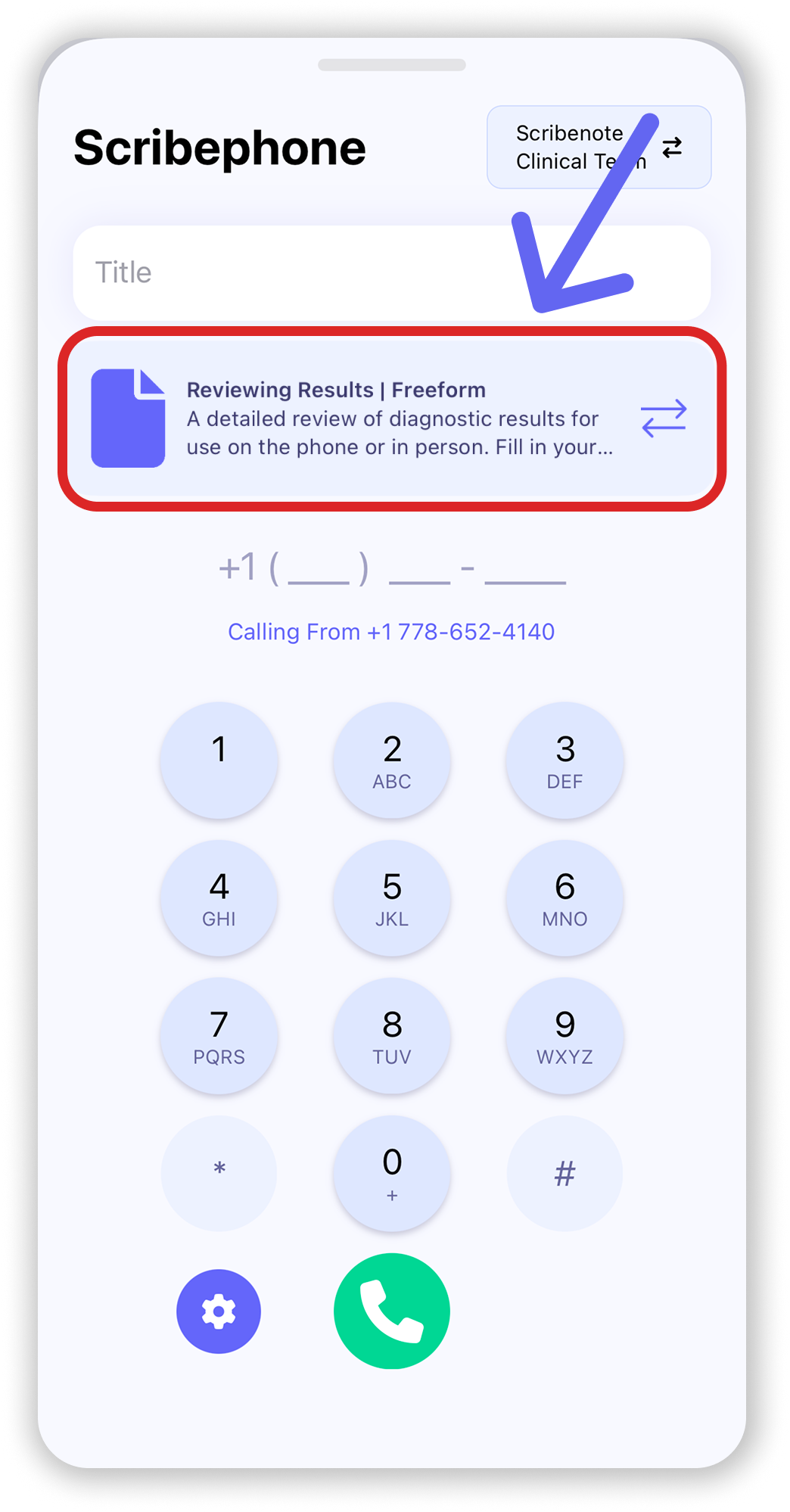
When you're ready, dial your client's number, and hit the green call button. Once the call is done, it'll turn into a callback note automatically.
Toggle it on in your Scribephone settings, and an automated voice tells the client the call is being recorded for veterinary documentation purposes.
.png)
Got bloodwork back on this morning's appointment? Open the note, click Add, and flip on the Scribephone toggle. The call gets stitched into the existing note instead of creating a second one.
.png)
That's the whole Scribephone setup! Set up caller ID once, then it's picking a template and dialing your clients from there.
Already on Scribenote Pro and something isn't clicking? Email support@scribenote.com and we'll give you a hand!
Just by signing up, you'll get 2 weeks of Scribenote Pro for free.
No credit card required.